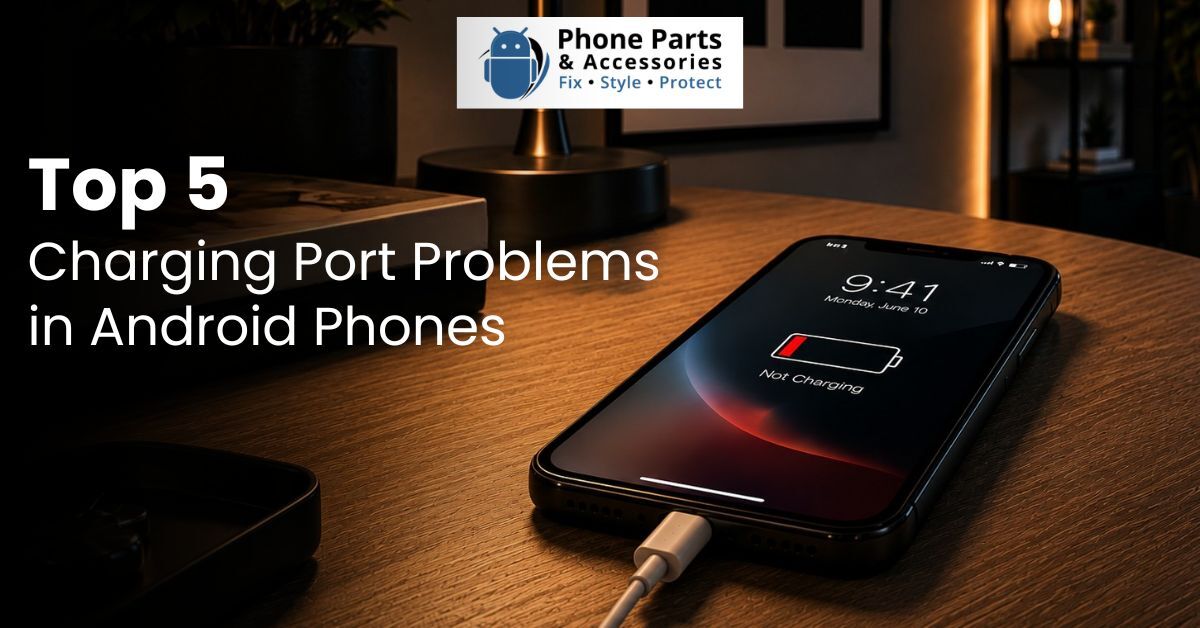
Few things are more frustrating than plugging in your Android phone and seeing nothing happen. Sometimes it charges slowly, keeps disconnecting, or only works when you hold the cable at a certain angle.
Before assuming the charging port is damaged, check common causes like dust, faulty cables, moisture, or software settings.
The best approach is to go step-by-step in the troubleshooting process before tampering with the port itself or paying for repair. In this guide, we will go over the most common charging port issues and the safe solutions we found for them.

Dust and pocket lint are the main issues that cause poor charging on Android phones. Daily use allows dust and lint to compress inside the USB-C port. Over time, that buildup can prevent the charging cable from making full contact.
A very dirty charging port has issues that may appear to be a greater hardware problem. You may see that the cable does not lock in all the way, sits crookedly to the side, or feels excessively loose even when it is the correct cable.
Your phone may disconnect intermittently while charging or only charge at certain angles due to debris blocking physical contact.
First, turn off your phone entirely. Use a flashlight to look inside the USB-C port and see if there is lint, dust, or dirt. Use compressed air in quick, short bursts to dislodge the loose debris.
If required, very gently clean around the center core with a wooden toothpick, plastic dental pick, or soft dry brush. Do it slowly and avoid pushing the dirt deeper.
🛑 CRITICAL WARNING: Do not scrape the delicate centre tongue inside a USB-C port. If it cracks or bends, the repair becomes much more expensive. Avoid metal pins, needles, paper clips, SIM ejector tools, and liquid cleaners.

Before you assume your Android charging port is broken, check the charging accessories. Outdated, degraded USB-C cables and weak chargers cause slow charging, charging to stall mid-process, or an outright failure to respond. This is often misdiagnosed as a port issue, but the solution may be as simple as a new cable.
Check both ends of your cable for bent tips, fraying, hidden dirt, loose connector housings, or heat marks. For best results, always use a charging block that matches your phone’s recommended wattage and manufacturer charging standard.
Water, sweat, a damp charging cable, and ambient humidity can cause your Android phone to stop charging instantly. Most modern Android phones (including Samsung Galaxy devices) have integrated moisture sensors inside the port. They will automatically disable wired charging to prevent severe corrosion, short circuits, or electrical failure.
When your phone senses fluid in the USB-C layout, it alerts you with a “Moisture detected” or “Liquid detected” warning banner. At that point, protection systems isolate power from the port. Samsung and other tech giants suggest that you fully dry out the device before attempting to source power via cable again.
If you notice a moisture warning, turn off the phone right away and unplug the cable. Clean the exterior frame with a microfibre cloth, then leave the device upright in a well-ventilated area. A cool fan may be used to circulate air into the port; do not apply heat.
If your device supports it, rely on wireless charging while the port completes its drying process. For Samsung phones, if the moisture icon persists after the port is completely dry, try resetting the system component by clearing the USB Settings system cache.
⚠️ Warning: Avoid hair dryers, microwave environments, direct baking sunlight, rice boxes, and forcing power overrides into the port. These attempts can permanently warp internal circuits.
A loose charging port isn't always caused by structural failure. Often, compressed lint stops the cable from sitting deeply enough in the port, creating a false symptom of hardware looseness. However, if the issue persists after a thorough cleaning and using a new cable, physical structural wear is likely present.
🚨 Important: If the base port area feels unusually hot to the touch, emits a burnt smell, or shows dark green corrosion crust, stop using wired power connections immediately to avoid motherboard damage.
Do not keep wiggling the cable to force a connection. This exerts mechanical stress on the motherboard's internal solder joints, turning a small repair into a much more difficult issue. If your cable remains loose after cleaning, get the phone professionally inspected.
Not all charging problems are hardware-related. Sometimes, system bugs, deep battery management features, or temporary operating system glitches trick the device into blocking power input altogether.
Your phone might show a charging icon but the battery percentage never increases. You may notice charging caps off exactly at 80%, fast charging switches off following an OS update, or software-locked moisture alerts refuse to clear long after the device is dry.
Perform a forced restart to clear system cache loops. On most Android devices, you can do this by holding the Power and Volume Down buttons simultaneously for 7–10 seconds. Check if "Protect Battery" or "Adaptive Charging" features are active, as these settings intentionally limit charging speeds or pause input to protect battery health.
If your charging port has suffered physical damage, overheats, or remains unresponsive after troubleshooting, stop using wired accessories to prevent permanent battery or motherboard damage.
Consider getting a professional inspection if you experience any of the following:
A few simple habits can extend the life of your Android phone's charging port. Most charging failures stem from daily wear, pocket lint accumulation, moisture, or degraded cables, making prevention much easier than hardware replacement.
Follow these quick tips to keep your device charging reliably:
Still Experiencing Charging Problems?
Get a fast, transparent component repair estimate from our expert technicians.
Request a Repair Quote →Q1. Can I use a toothpick to clean my Android charging port?
Yes, but do so very gently. Use a wooden toothpick or a plastic dental pick. Keep all rigid metal objects like safety pins, needles, or paper clips far away from the port, as they can permanently short-circuit the internal contacts.
Q2. Why does my phone only charge when the cable is at a specific angle?
This symptom is almost always caused by a dense buildup of pocket lint that blocks the cable from fully locking in, a worn-out cable connector tip, or fatigued solder joints anchoring the charging port to the phone's internal board.
Q3. How do I know if my charging port needs to be completely replaced?
If multiple known-good charging cables fail to fit securely or supply power, if the internal contact tongue looks physically warped or broken, or if charging drops out completely after safe cleaning attempts, it's time for a professional replacement.
Get everything you need for your phone repairs in one convenient place. Plus, take advantage of expert installation services and exclusive perks for new customers—including free shipping!

Register now to get latest updates on promotions & coupons. Don’t worry, we not spam!
By subscribing you agree to our Terms & Conditions and Privacy & Cookies Policy.

Get everything you need for your phone repairs in one convenient place. Plus, take advantage of expert installation services and exclusive perks for new customers—including free shipping!